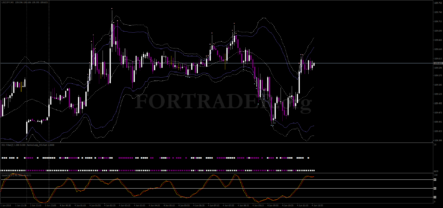
Every trader, sooner or later, comes to the question of how to install an indicator in MT4 because the standard set of indicators is not sufficient. Internet resources provide a large number of additional indicators and scripts that are intended to help traders make profit on the foreign exchange market. However, in the comments to these indicators and scripts, you can often find “I installed it, but it doesn’t work.” In this article, we will show you how to make it so that “I installed it, and it works.”
Step-by-Step Guide to Installing an Indicator in MT4
Step 1
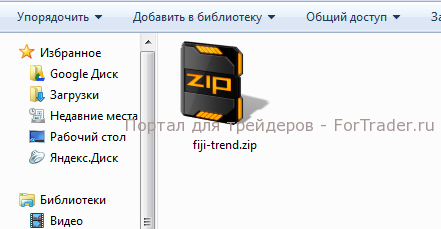
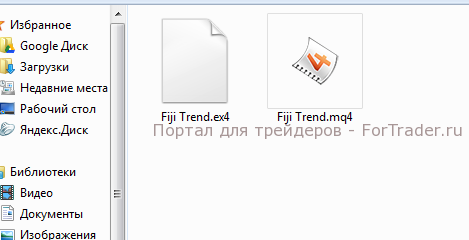
Usually, downloaded forex indicators and custom scripts are in archives that need to be unpacked. The resulting file or files will have the extension *.ex4 or *.mq4.
Step 2
To install an indicator in MT4 or a script, copy or move the unpacked files to the corresponding folder with the MetaTrader 4 trading platform. There are two ways to do this:
Method 1: (outdated method, for old terminal versions and Windows OS)
For an MT4 indicator this will be the folder C:\Program Files\MetaTrader \MQL4\Indicators
For an MT4 script this will be the folder C:\Program Files\MetaTrader \MQL4\scripts
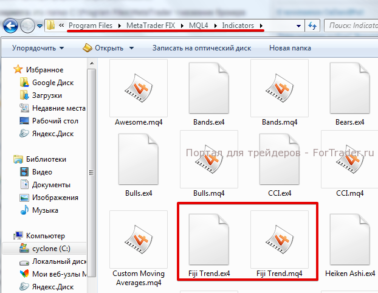
Method 2: (new installation method)
In the terminal, open the tab “File” – “Open Data Folder”

Copy the files to the corresponding folder, similarly to the first method.
The second method of installing an indicator in MT4 will be more convenient for those who have multiple terminals installed for different brokers, as well as for those who have Windows 7 or higher operating system.
Step 3
After placing the necessary files in the appropriate folders, restart the MetaTrader 4 terminal if it was running, or simply start it.
Step 4
In the forex trading terminal, the indicator can be installed in two ways:
– Through the “Navigator” button, open the side panel. Open the “Custom Indicators” tab, find the installed indicator, and drag it onto the chart of the currency pair you want.

– Go to the “Insert” tab, select “Indicators”, then “Custom”, find the desired indicator, and click on it.

Whether you use the first or the second method, there is absolutely no difference.
Step 5
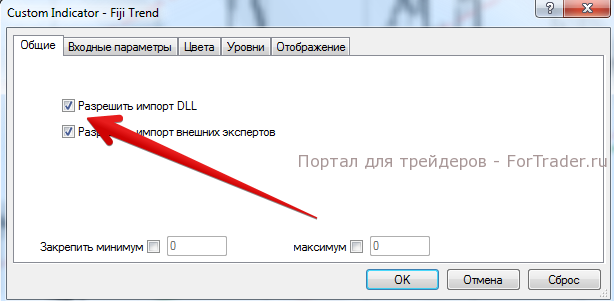
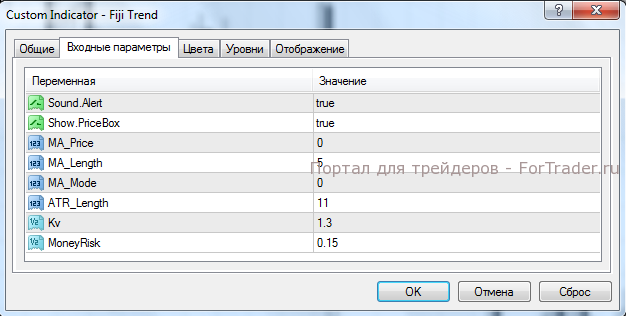
After the operations described in the previous step, a settings window will appear, where you need to check the box “Allow DLL Import”, and also you can change the parameters of the forex indicator, adjusting it to your preference.
Step 6
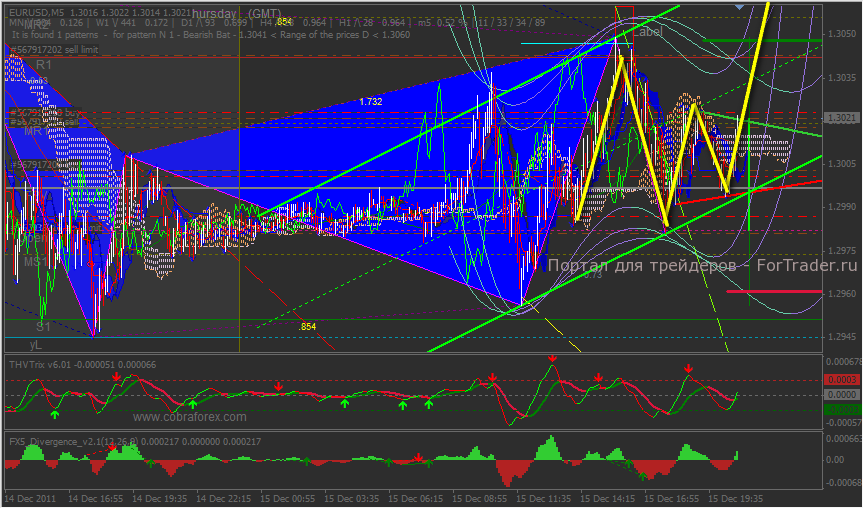
In the end, you get a working indicator on the currency pair chart.

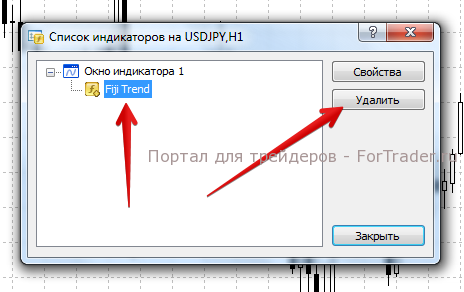
Step 7
To remove the
FAQ
How do I install an indicator in MT4?
Download the indicator, unpack the files, and copy them to the appropriate folder in MetaTrader 4 (e.g., Indicators or Scripts). Restart the platform to apply changes.
Where are the indicator files placed?
Place .ex4 or .mq4 files in the MQL4 folder, specifically in the Indicators or Scripts subfolder depending on the type of file.
How do I add an indicator to a chart?
Use the Navigator panel or the Insert menu, select the custom indicator, and drag it onto the chart or choose it from the list.